This function allows you to add data and information to Google Sheets in an intelligent and adaptive way.
Users can specify the spreadsheet URL, the data range, and choose between overwriting existing data or adding it as a new row/column. You can use AI models to provide analysis and insights and have all the results integrated into Google Sheets, allowing for easy data integration and updating, making the process more efficient and less error-prone.
The first thing to do is select your spreadsheet for data analysis and processing.
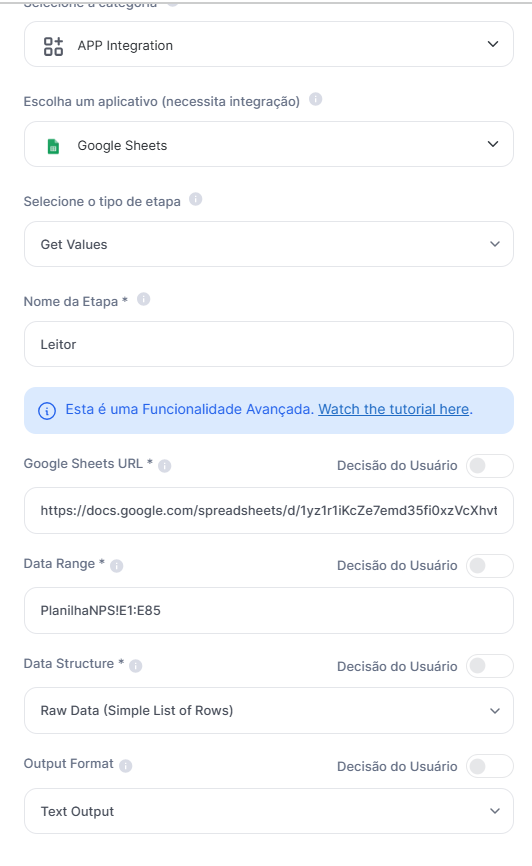
As a first step, inside Agent Studio, we’ll create an advanced "App Integration" step with the reference spreadsheet URL and the data reading range. As in the screenshot, we’ll call this step Reader and select "Get Values", because we want to retrieve the data.
Another option is to not set a fixed URL in the advanced step. To do this, just select the option "User Decision" and, in this case, the recommended approach would be to add a data input field and also a reading radius field, like in the screenshot.
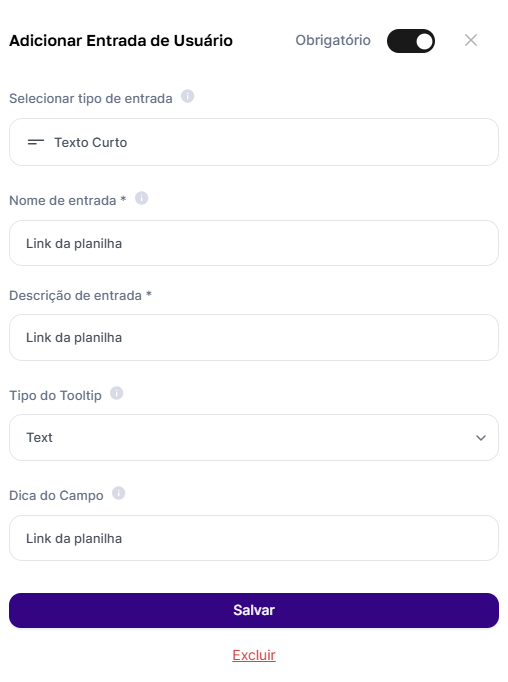
Leading to the selection shown below

Before changing the spreadsheet, we need to process and analyze what comes from the spreadsheet and the selected data radius, in other words, we have to use an assistant that will evaluate and recommend the actions you, as the user, want. Right?
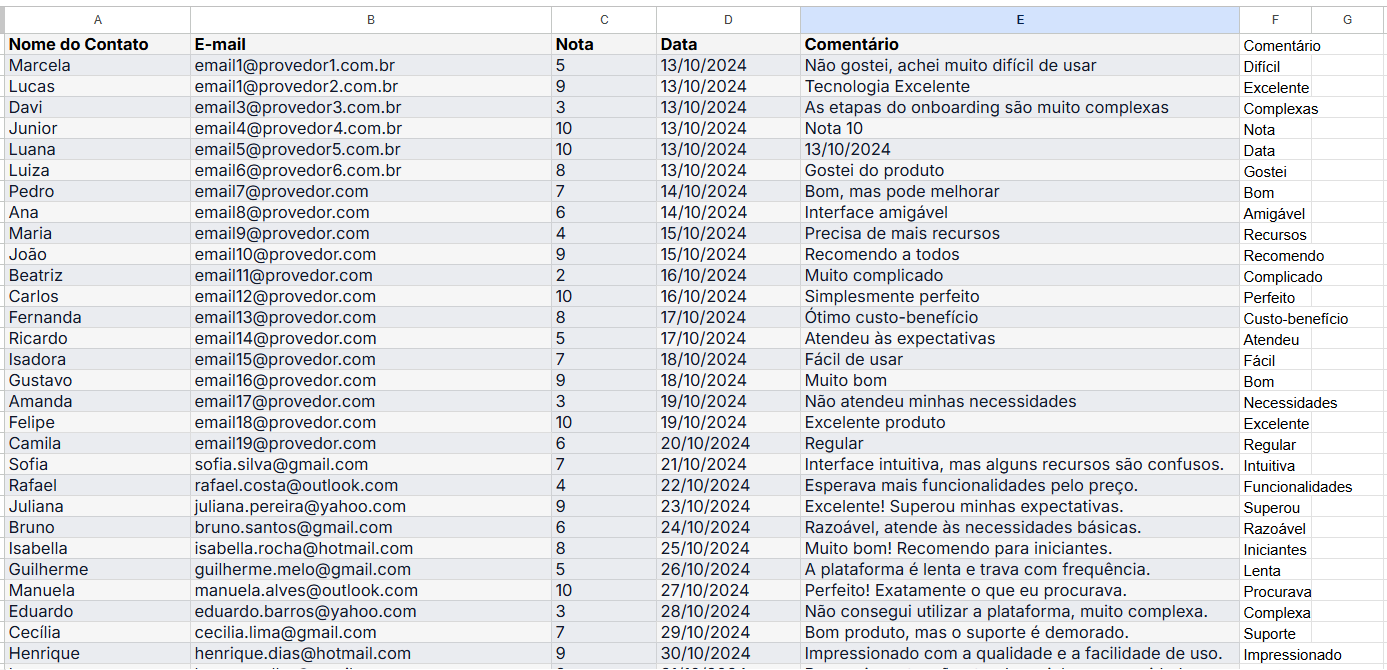
We’re going to bring here an example of a survey in which we want to analyze the comments made by customers and summarize each comment with a single word, like in the example below
Comment | Summary |
I didn't like it, I found it very hard to use | Hard |
Excellent Technology | Excellent |
The onboarding steps are very complex | Complex |
Bringing the example above that we mentioned, let’s select the Step AI Assistant and choose the Chat GPT Text Assistant, as in the screenshot below
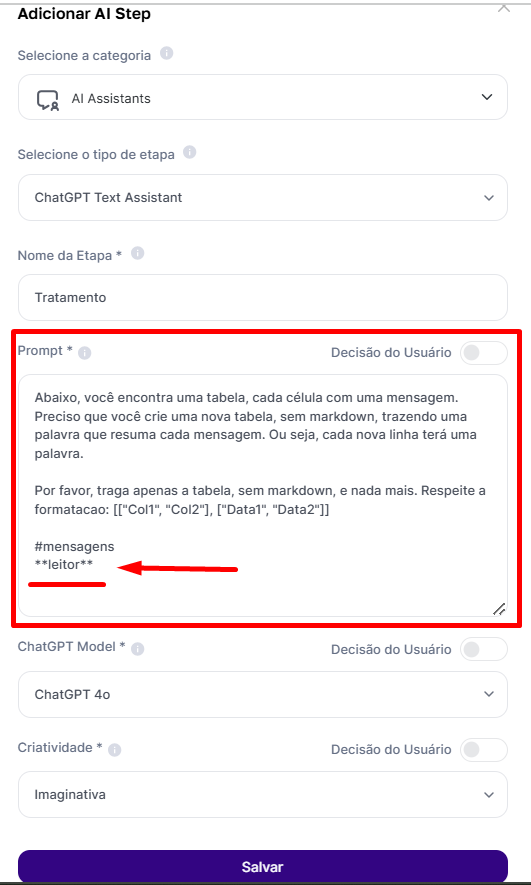
Notice that inside the assistant, we already have a ready prompt with what we want to run, in other words, I’m already telling the chatgpt assistant what I want it to do.
Below, you’ll find a table, each cell with a message. I need you to create a new table, without markdown, bringing a single word that sums up each message. In other words, each new row will have one word.
Please return only the table, without markdown, and nothing else. Follow the formatting: [["Col1", "Col2"], ["Data1", "Data2"]]
#messages
**reader**
Of course, I need to reference the spreadsheet I inserted. That’s why I’m highlighting the reference to the **Reader**, the first step I added that has the spreadsheet and its data range, just like I’m going to specify exactly the data format I want the spreadsheet to return to me.
In short, what have we done so far?
We inserted the analysis spreadsheet (Creation of the Reader using the Step App Integration and selecting Get Values, to fetch the values)
We chose the data range for analysis (Creation of the Reader using the Step App Integration)
We decided that we want to process the data (Creation of the Processing Step using the AI Assistant)
We decided how the processing will be done through a prompt that will reference the analysis spreadsheet (Definition of the Processing Step using the AI Assistant)
So far so good!
So what’s missing then?
We already have reading and processing... we just need to change the spreadsheet, right?
Now comes the easiest part. We’ve already read and processed it, we just need to write.
So now let's create a new advanced "App Integration" step with the reference spreadsheet URL and the data reading range. But, unlike in field 1, we'll call this step Writer and select "Write Values", because we want to write the data, not get it anymore!
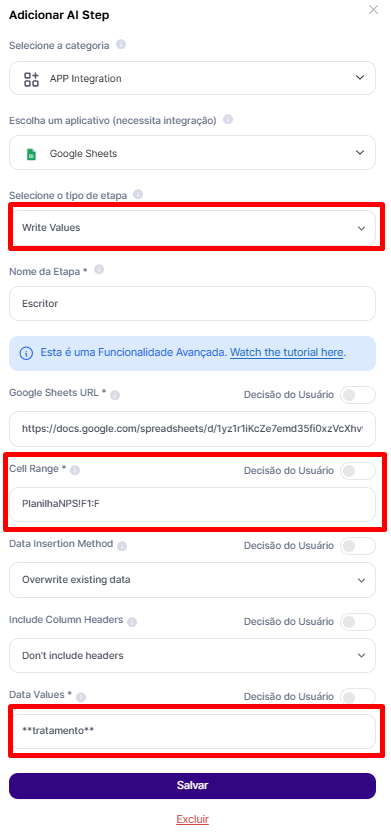
Besides that, I need to make a few other selections:
Writing range: I need to select which column or space will receive the result I want. Since in the reading I have the data in column "E" and those are the ones I'm going to process, I'll do the writing in column "F", right next to it;
Data insertion method: I can choose between overwriting the data in the selected range (which is how it's set in the screenshot above) or creating new rows so it doesn't overwrite.

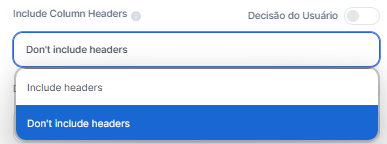
Include headers or not: also, I can also choose whether I want the headers to be considered or not.
Values of the data to be inserted: as a last decision, I need to select what will be inserted in column F (which was my selection). Of course, I want the processed data to be that. And since I already have this "Step" ready, because it was exactly my processing, I just put the reference to it.
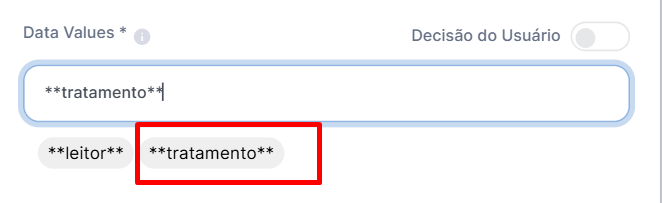
Note that everything can also be a user decision, ok? In this case, since we’re doing it based on the spreadsheet, we’ve left everything ready, but feel free to create!
To finish the Agent, I just need to wrap it up with a desired prompt. In this case, since I already have everything I want, I’ll leave it as a text Agent without the need for applied AI, just returning the comments summarized in a single word.
After all, everything is already done in the AI Steps
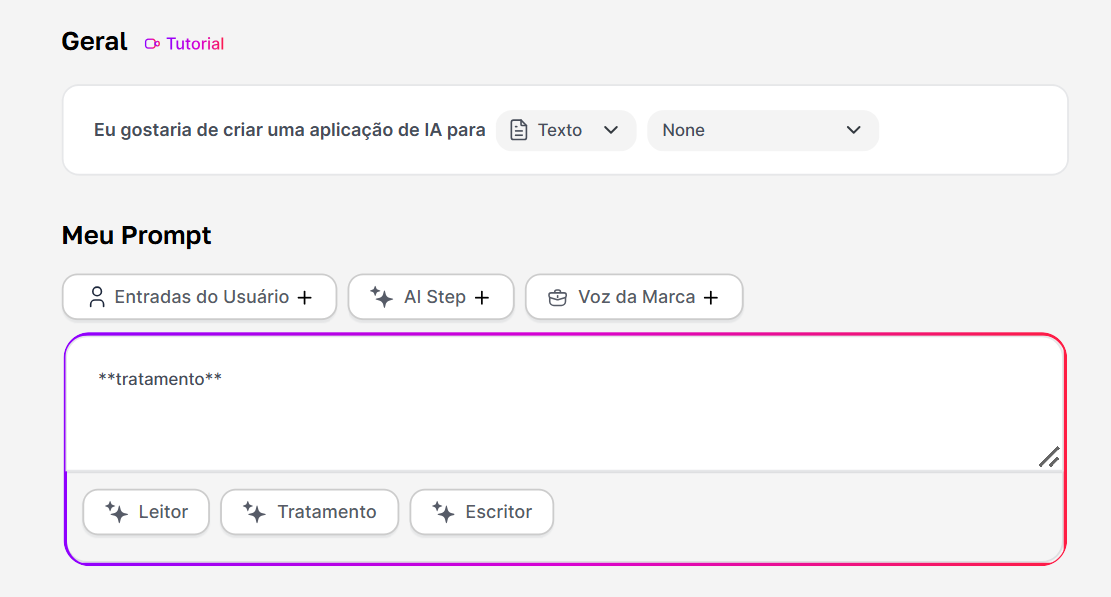
In a simple way, here is the result after asking it to generate.
Before
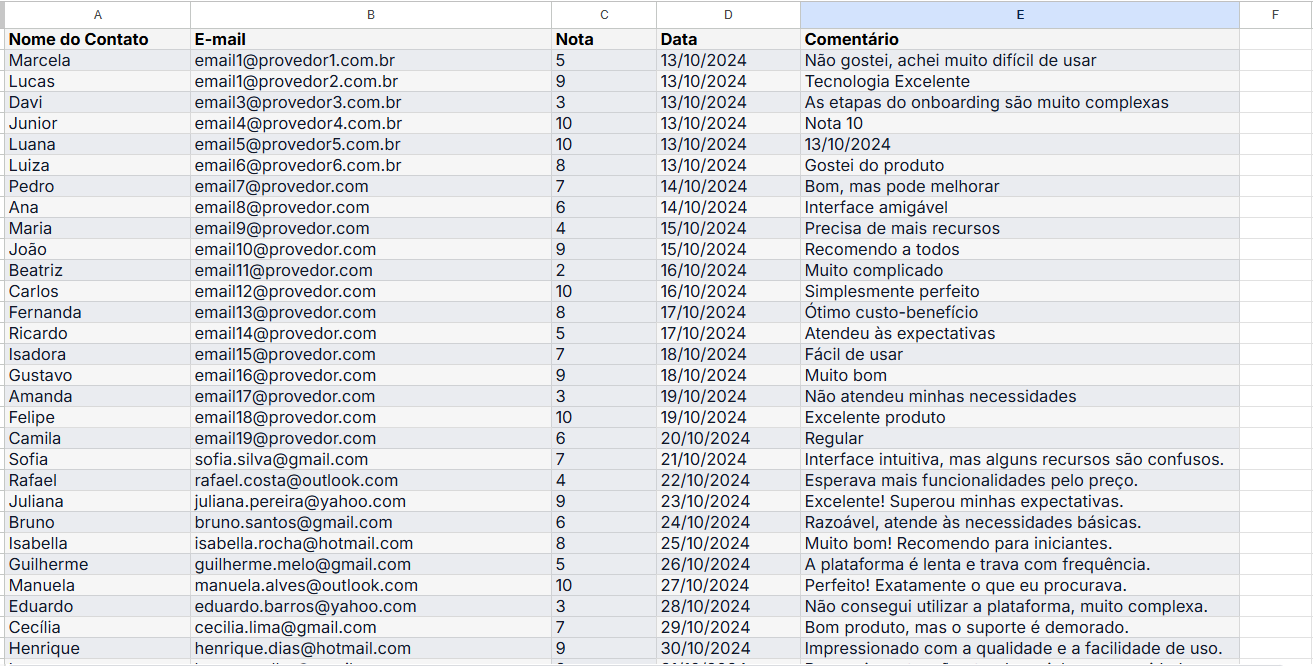
Using the template
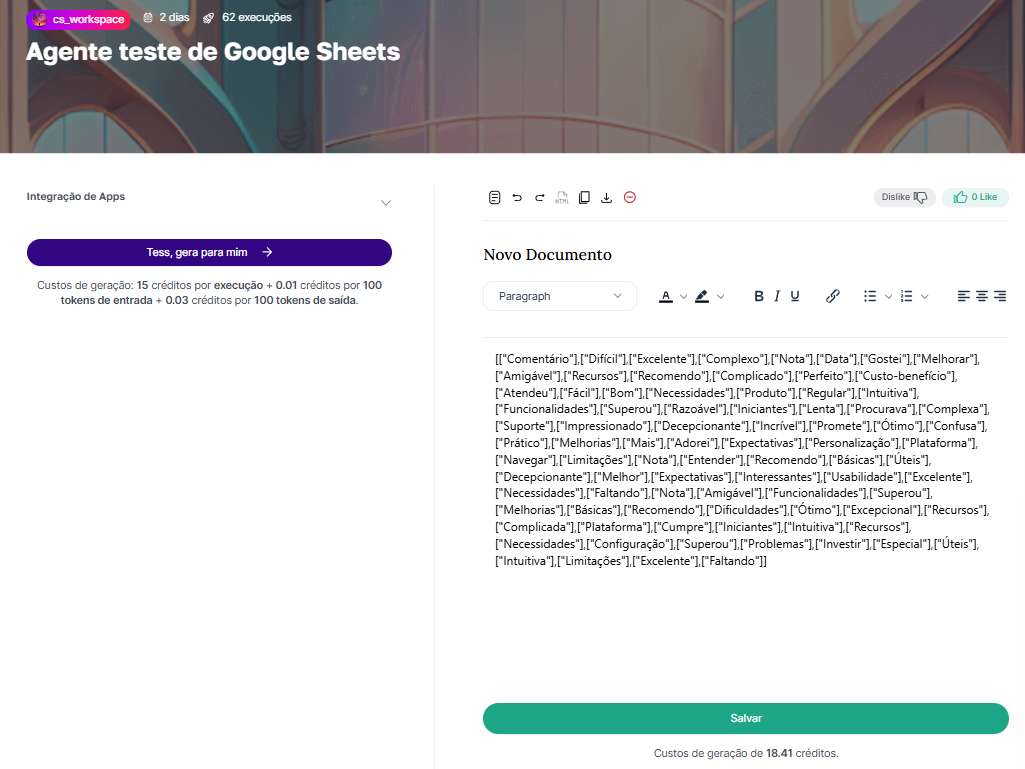
After use