Chat is the main way to interact with Tess AI. We offer a unified interface where you can collaboratively use text, image, video, audio, narration, avatar creation models, as well as several professional tools.
Tess orchestrates all this work for you, turning the use of various types of AI into an integrated, conversational, and frictionless experience.
Starting a Conversation: To get started, just type your request in the text box. You can ask questions, have the AI perform tasks, request text creation, analyze data, and much more.
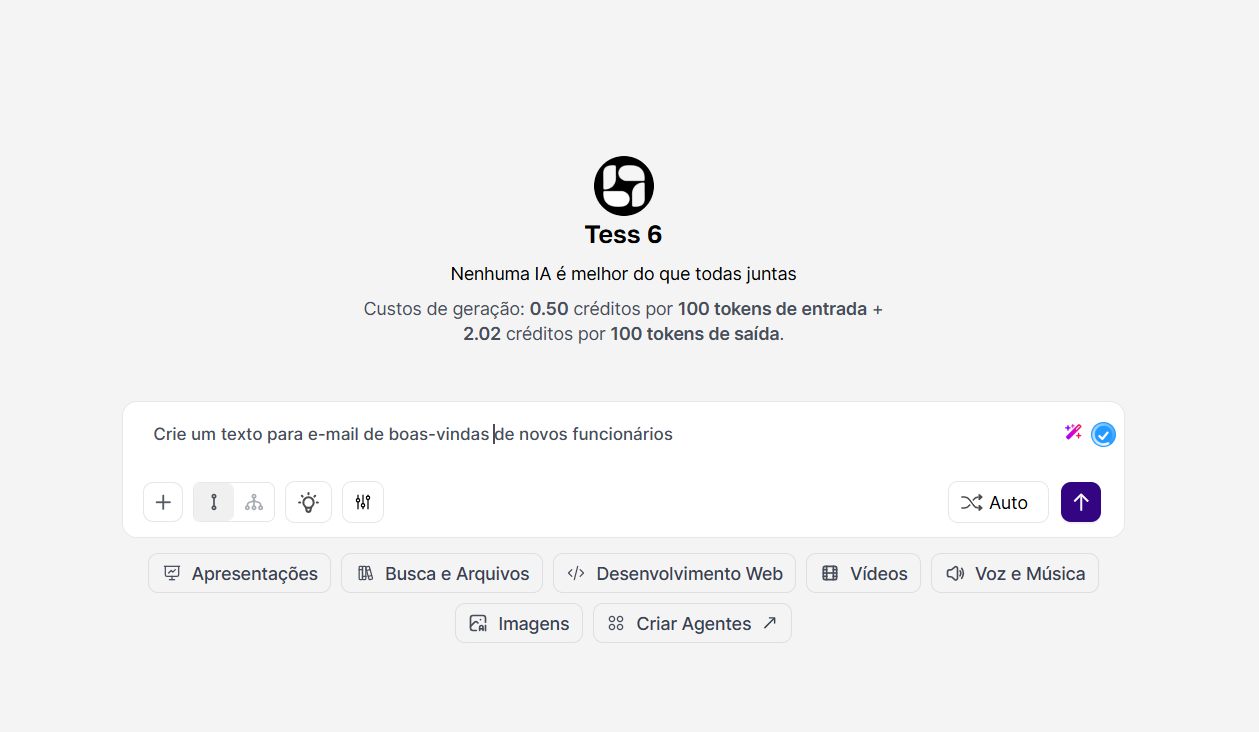
Commands and Clear Instructions: The clearer and more detailed your request is, the better the result will be. Instead of saying "create a text", try being more specific: "create a text for a LinkedIn post about the impact of artificial intelligence on the financial market, with a professional tone and a call-to-action for a webinar".
Tess Micro Playbooks: Right below the chat box, you have several “ice breaker” options to help you think of use cases and generate the respective prompts for your use. All these topics are available to help you start using it with quality – Presentations, Search and Files, Web Development, Videos, Voice and Music, Images, Create Agents.
Choosing the AI Model or using Auto Mode: Tess AI gives you the flexibility to choose the AI model that best fits each task.
You can manually select a specific model (like Claude 4.5 Opus or ChatGPT 5.2) at the bottom of the chat window or work with Auto Mode.
When you turn it on, Tess AI analyzes your request and automatically selects the model with the best balance between cost and performance for that specific task, optimizing the use of your credits.
Interacting with Specific Agents: You can direct your request to a specific agent using "@" followed by the agent's name. For example: @AgenteDeMarketing, create three slogan options for my new campaign. This option is not valid for private agents.
Adding Knowledge Base: The Knowledge Base lets you upload files (like PDFs, DOCX, TXT etc.) so the agent can consult this information before responding. It means training the chat or your agent in a more accurate way.
Imagine asking the AI to create a summary of a report or answer specific questions about your own product manual. Just attach the file to the chat and make your request to ensure accurate and relevant answers.
Activating a Tool: Tools let the agent perform actions that go beyond text generation, such as accessing the internet or social networks to search for updated information, creating virtual machines for data analysis and financial calculations, or generating/editing files.
Next to the chat box, you’ll find a menu of available Tools. Before sending your request, you can activate the "Internet" tool, for example. So, when you ask "What were the main technology news stories this week?", the AI will use the internet to come up with the most up-to-date answer.