Tess AI’s Conversation History is the place where all your interactions with the AI are automatically saved.
Where is the history?
On the left side of the main screen, you’ll find the list with your chats organized chronologically. Each new chat is saved automatically and gets a name generated by Tess itself, based on the beginning of the conversation (which can be renamed).
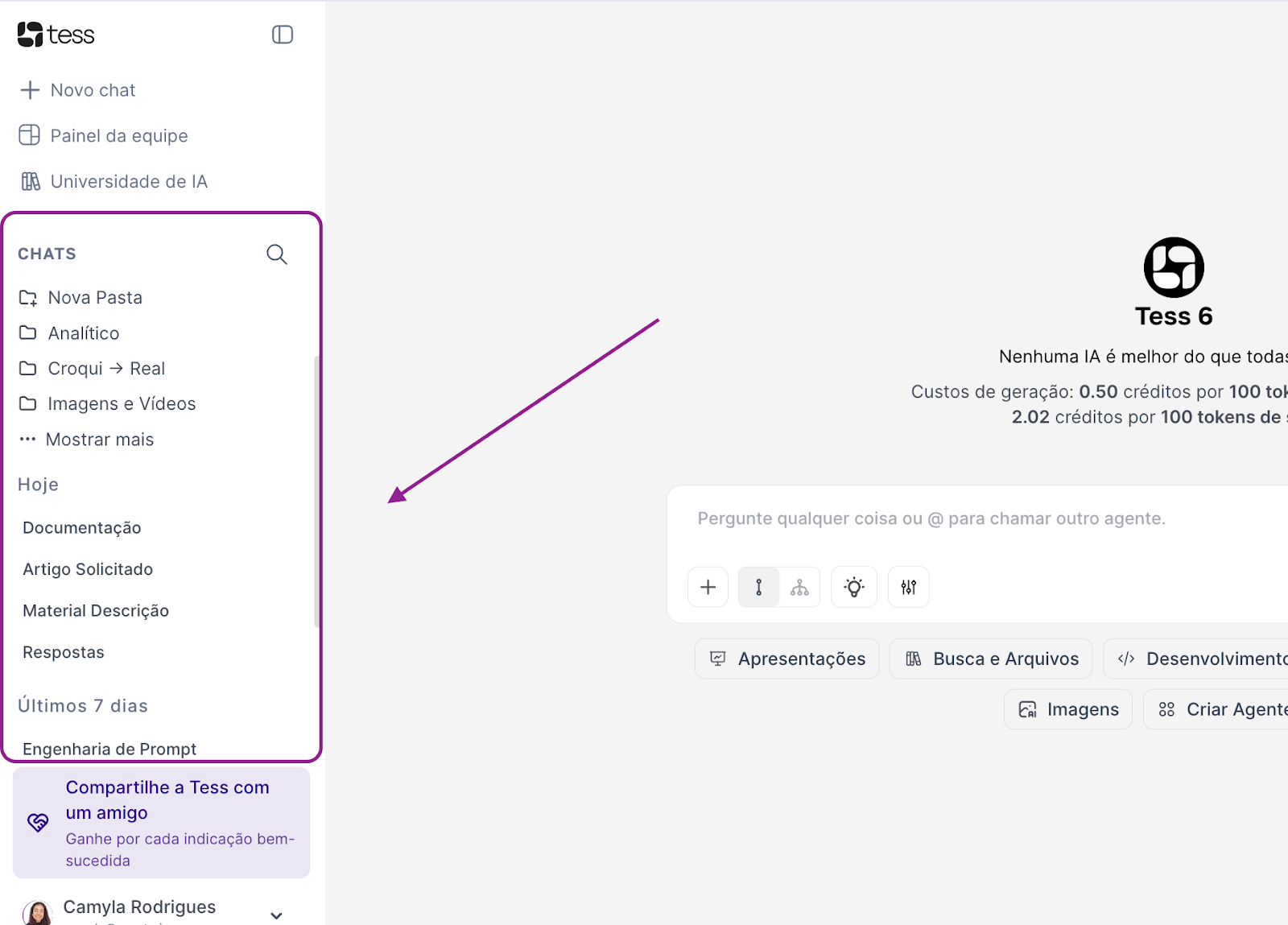
What you can do in History
Reopen previous conversations: click on any conversation in the list to open the full history. You can keep the conversation going exactly from where you left off, reusing all the context that’s already been built.
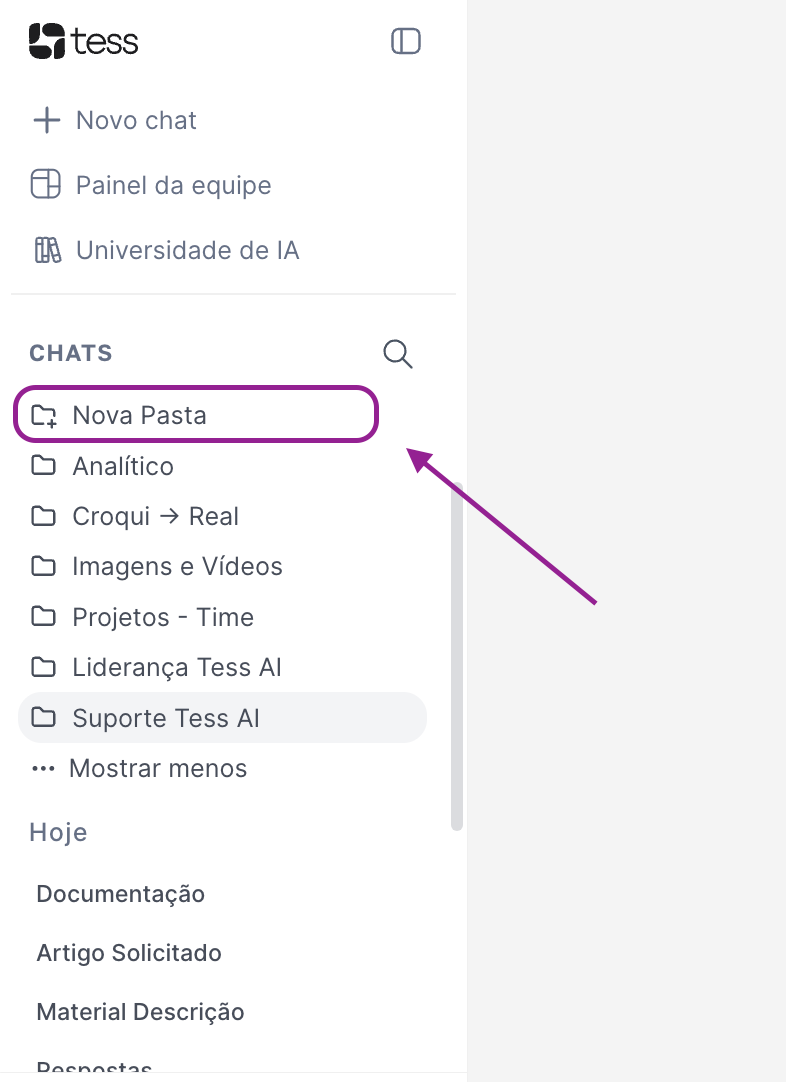
Organize into folders: to keep everything organized, you can create folders and group conversations, for example, by topic (e.g.: “Marketing”, “Legal”, “Internal Support”), by project (e.g.: “Q3 Launch”, “Client Onboarding”), by client, etc.
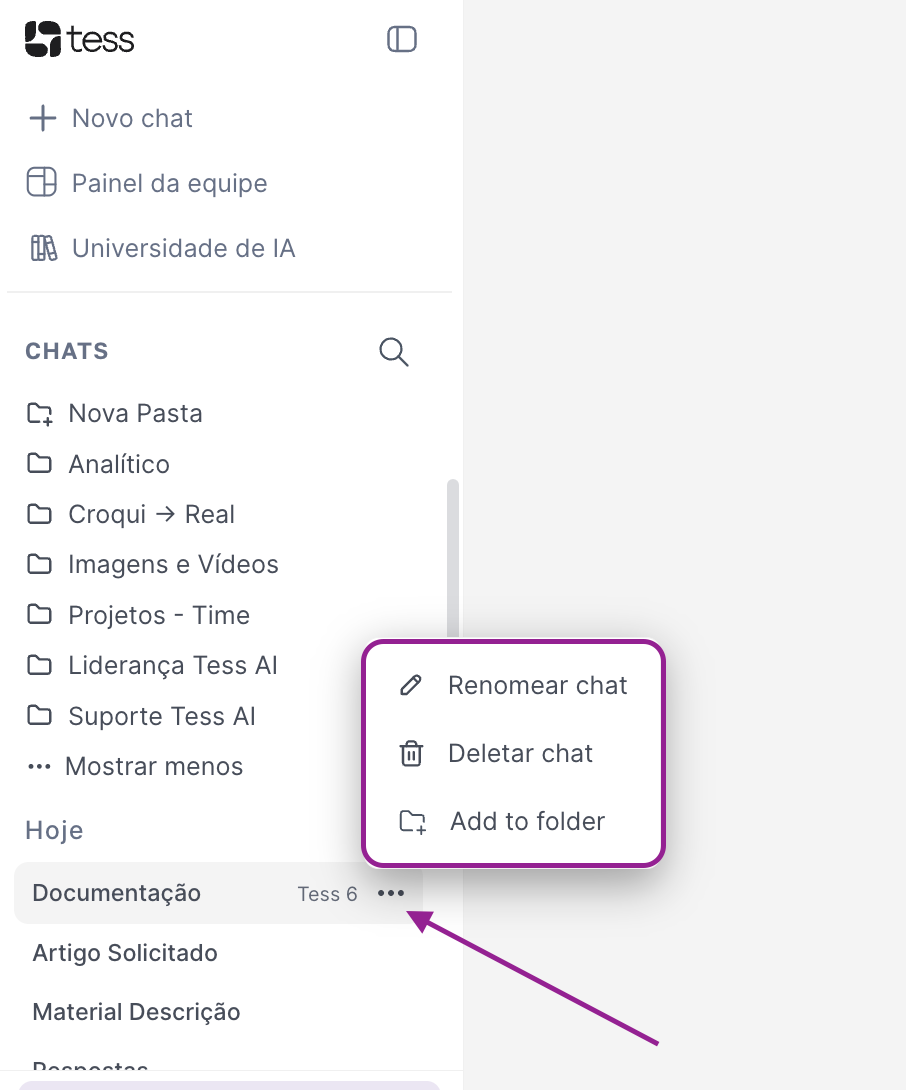
Rename or delete chats: If any assigned name isn’t ideal or doesn’t follow your standard, you can rename it. Or, if a chat isn’t relevant and you want to delete it, you can do that too. Keep in mind this process can’t be undone.
Reuse content: When revisiting conversations, you can copy important parts already created, turn old answers into documents, or use previous conversations as the basis for new prompts.
Make the most of the Conversation History, because it’s your memory panel inside Tess AI: everything is saved, organized, and easy to find. If you have any questions, contact our support at: support@tess.im.