Tess AI lets you share chat conversations via links, making collaboration, internal alignment, and demos easier. There are two sharing options, accessible through the share icon in the top right corner of the chat: Clone Chat and Public Chat (Replay).
Where to find it?
Open the chat you want to share
In the top right corner, click the share icon
Choose the link type: Clone Chat or Public Chat (Replay)
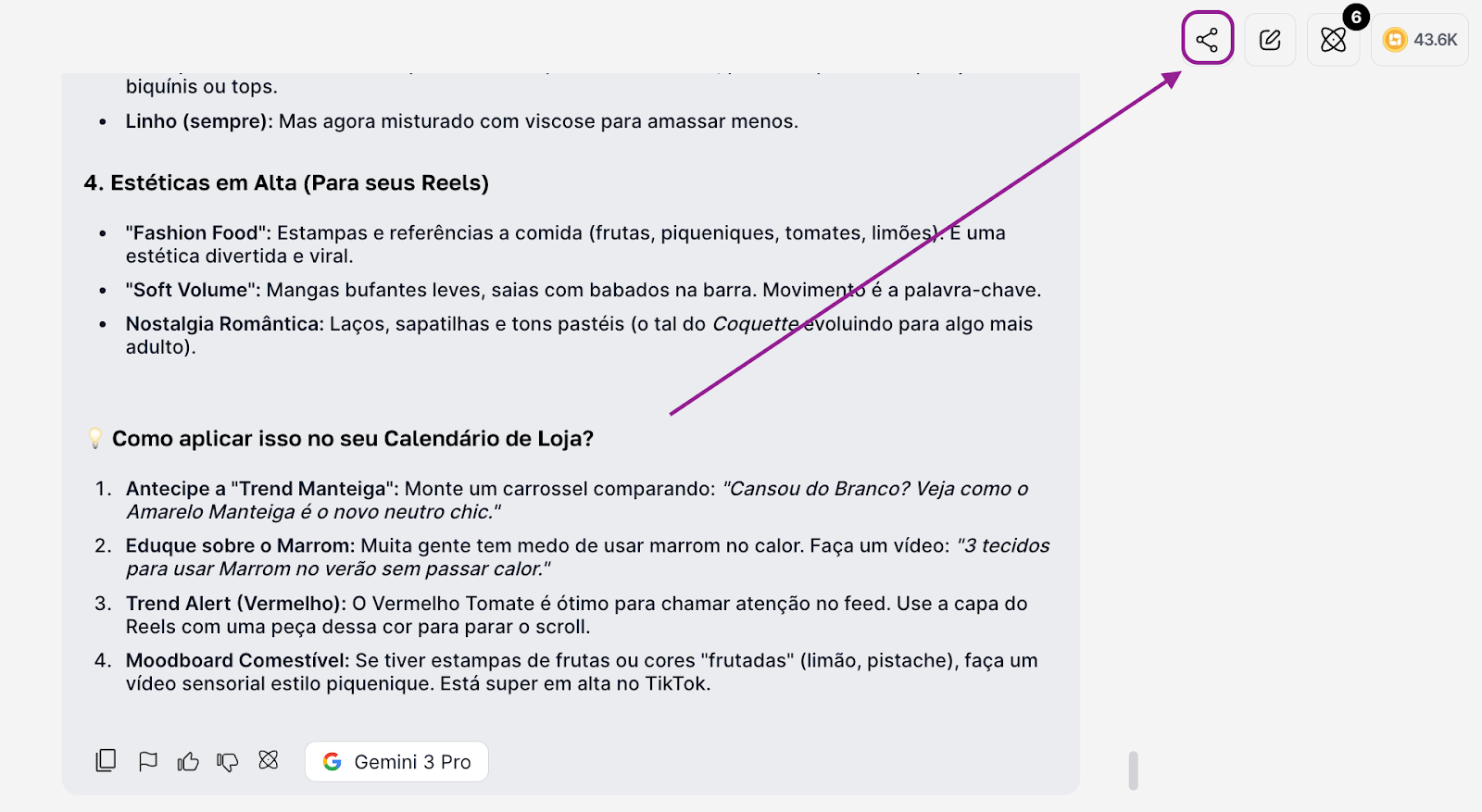
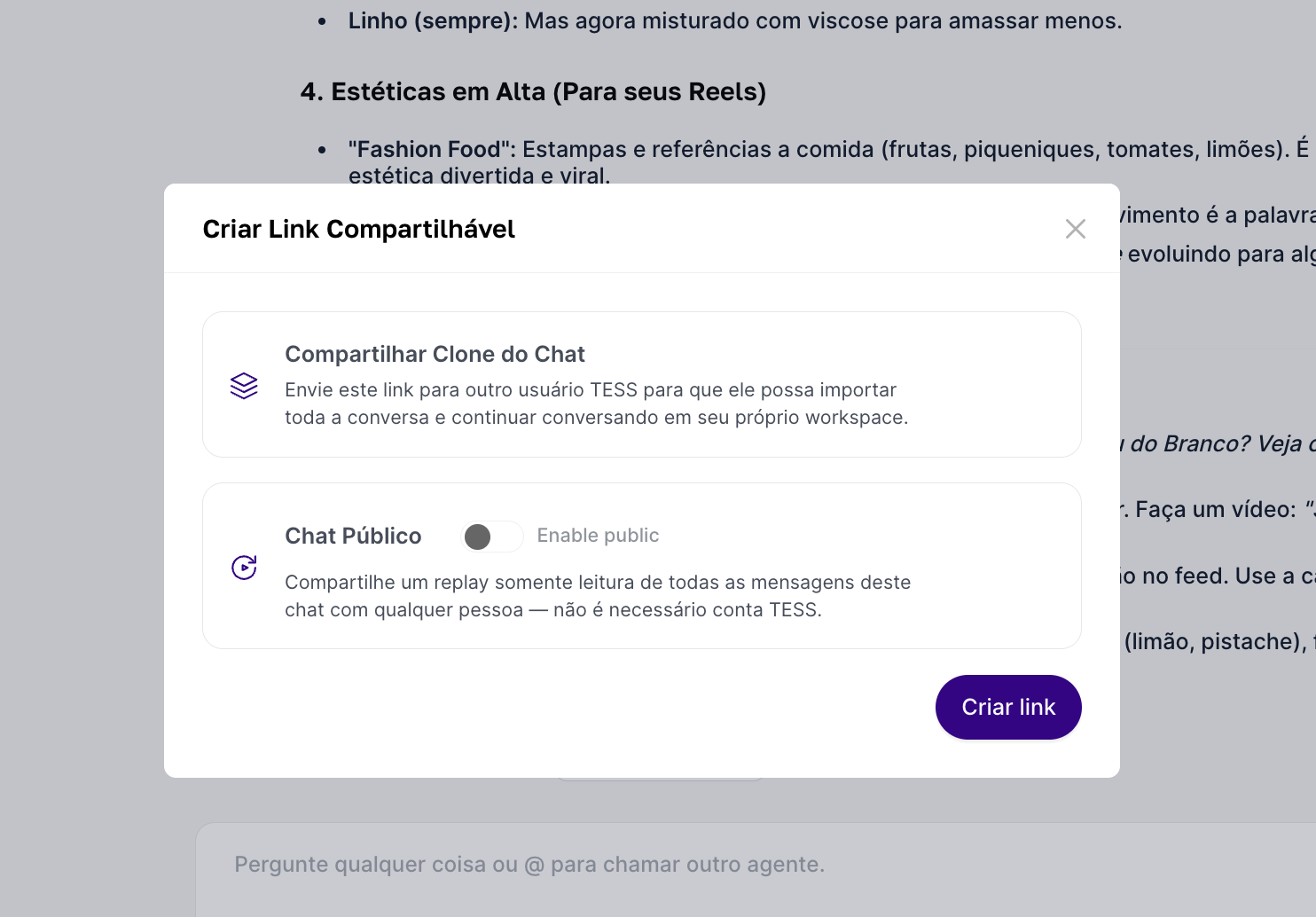
Sharing options
Clone Chat (collaborative link)
A link is generated that lets someone else open a copy of the chat and keep the conversation going from where you left off. They’ll see all your previous exchanges.
Use it when you want collaboration on projects and to pass on the context built so far so someone can continue from their own screen. Or if you’ve done some internal demo of a flow (e.g.: prompt, support structure, script) and the result can be reused by another user in Tess.
In short, the person can continue the chat and generate new messages from the existing history without messing up your screen or adapting it to their own context (without “reinventing” everything).
Public Chat (Replay) (view-only link)
A public link is created that works like a “replay” of the conversation (showing the whole exchange in an animated way). Anyone with the link can view the interaction, even without a Tess AI account.
Use it to share a result with an external audience (e.g.: insight, tutorial, agent example), show how Tess arrived at an output (process transparency), or even send it to a client/partner as a conversation reference (without giving edit access).
The person will only be able to view the conversation (as a replay), so they don’t need to log in to Tess to open the link.
Important rule:
Sharing in both paths doesn’t work if the chat has attachments in the knowledge base. Chats with documents/files attached in the base can’t be shared. So, to be able to generate the link, you need to remove all attachments associated with the chat (the chat’s knowledge base).
This exists to protect data and prevent internal files from being exposed via link.
To share a chat that depends on files, consider: turning it into a text-only guide (without attachments) or making the material available through a separate secure channel. Before sharing, review the chat and remove sensitive information (personal data, keys, private links, internal details).