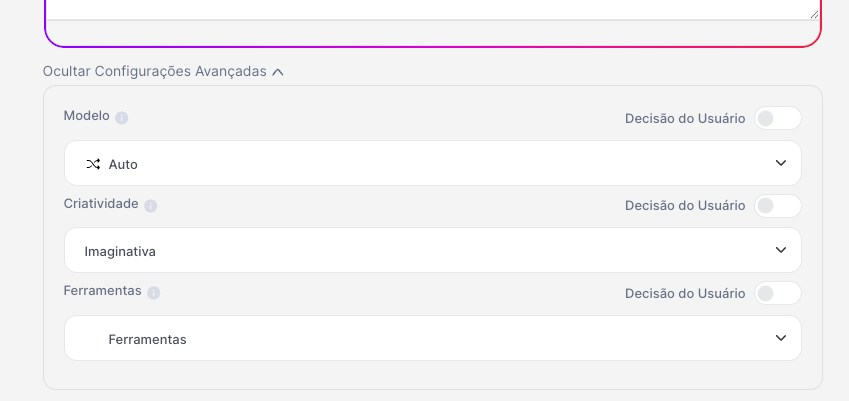
This is the advanced control of the agent's behavior. Here in the advanced settings is where you can predefine AI model, tools, temperature, and other parameters to ensure predictable answers aligned with your use case.
Where to find it?
The Advanced Settings section is on the agent settings screen and brings together the advanced settings, where you predefine:
which LLM it should use (or if it can use more than one)
which tools (Tools) it should trigger by default
which temperature range/response style will be used
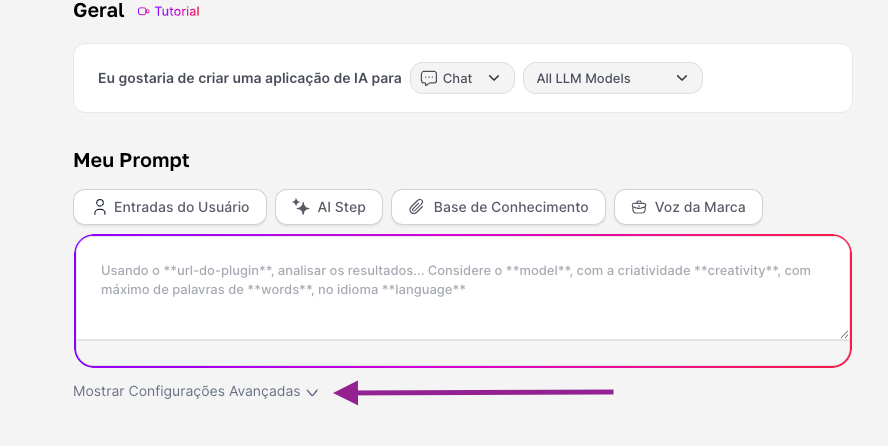
Instead of relying only on the choices made in the chat and by the user, you set these parameters directly on the agent, inside Agent Studio. They will only be changed if the agent is changed:
Why it matters
Control: less creative and more analytical agents, for example for financial, legal or compliance areas, need less “creativity” and more control.
Security: you limit which tools the agent can call (e.g.: allow or block Internet, integrations, etc.).
Standardization: everyone who uses that agent will get the same behavior, regardless of who is in the chat. A perfect feature for creating agents that will be used by lots of people.
What influences it?
1) Standardizing a model
If you choose a specific model for the agent to work with, the end user won’t be able to change it, and all interaction will be done with that chosen model. That’s why we disable the user’s decision and pick this model.
This process can be used when you identify that a certain model performed best for the agent’s activity and, to avoid changes and different outputs, you can lock it in so everyone who uses the agent will also be talking to the same model.

2) Standardizing the Temperature
In general, temperature can influence the LLM’s creativity. So, if your agent is more geared toward finance or law, for example, you can choose to use a lower temperature, keeping creativity under control.

But if your agent leans more toward a creative angle, like in marketing, brainstorming, or content areas, you can choose to use a higher temperature, allowing more creative freedom for the LLMs.

3) Standardizing Tools
If your agent is specific and dedicated to analysis, you can leave Deep Analysis enabled, for example. But remember, when you set one tool, another one won’t be activated at conversation time.

If the agent is for image generation and you’ve noticed that Nano Banana is the best at this (based on tests and the prompt specs), once you leave it configured, every time an image is generated it will be with Nano Banana.

You can combine the three settings or choose just one to standardize! If it’s an agent for your team, remember to document internally the explanations of these settings so the team understands the reason.