If a picture is worth a thousand words, a video can tell a whole story. With Tess AI’s Video Generator, you create moving clips from a text description (prompt) or even from a reference image (depending on the chosen model).
It’s ideal for marketing, social media, product demos, educational content, and creative experimentation.
Where to generate videos in Tess AI?
You can generate videos in three main ways:
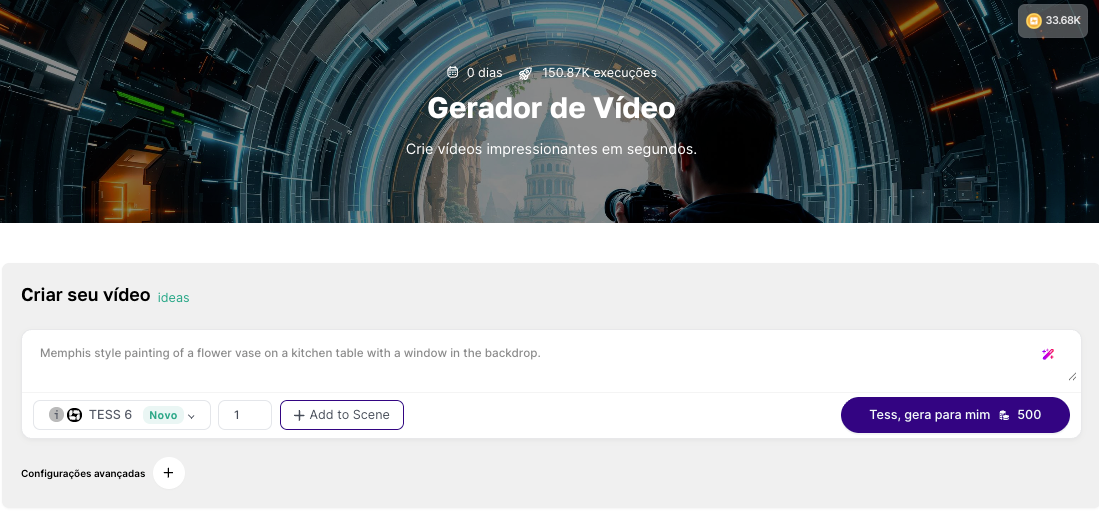
In the Video Generator (visual creation interface)
For this path, open the Agent Studio in the left side menu and then the Video Generator.
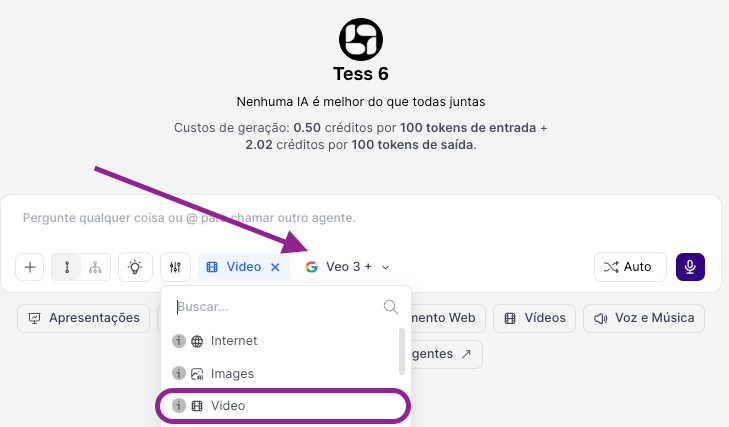
In Chat (via Tools)
This is the fastest way to turn an idea into a video without leaving the conversation.
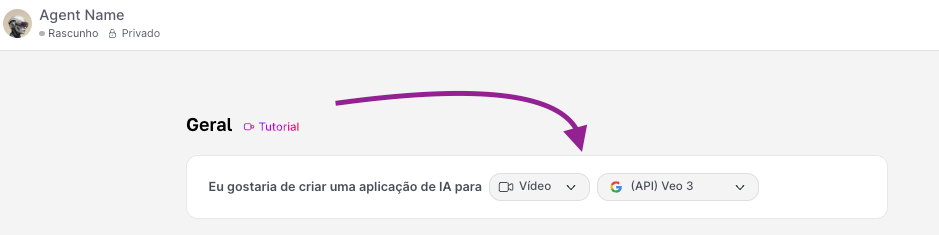
Via Video Agent (in Agent Studio)
If you need to keep consistency (same style, format, and guidelines), create a specialized agent.
In this article, we’ll focus on video generation using the Generator, whose interface works like your “production studio” inside Tess AI. It uses AI models capable of interpreting your instructions and creating moving scenes — usually in the form of short clips, ready for you to download and use.
To work with video generation, pay attention to the prompt, the chosen model, and the settings available in each model.
The prompt
Describe the scene (the prompt). Here, you should think in terms of movement and action (not just “what the image looks like”). So, include elements like:
Subject: who or what appears
Action: what is happening. Use verbs (movement is everything): “running”, “spinning”, “floating”, “flying over”, “cutting through”, “approaching” “the camera follows”, “the camera moves closer”, “the camera passes through”
Environment: where the scene takes place
Style: realistic, animation, cinematic etc.
Camera: camera angle and movement
Examples of (good) prompts
“A golden retriever running in slow motion on a sunny beach at sunset, gentle waves in the background, cinematic style.”
“Close-up of hands typing on a mechanical keyboard, blue and purple neon light, focus shifting, slight shaky vlog-style camera.”
“Aerial travelling over a dense, foggy forest at dawn; sun rays cut through the mist and reveal a winding river below.”
Tip: You can improve your prompt with Magic Prompt, it enhances and translates your command to make it even better!
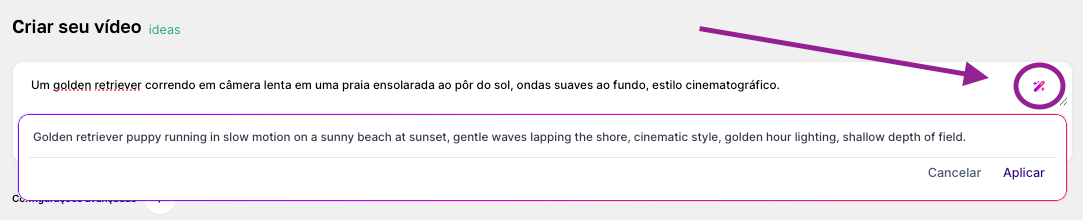
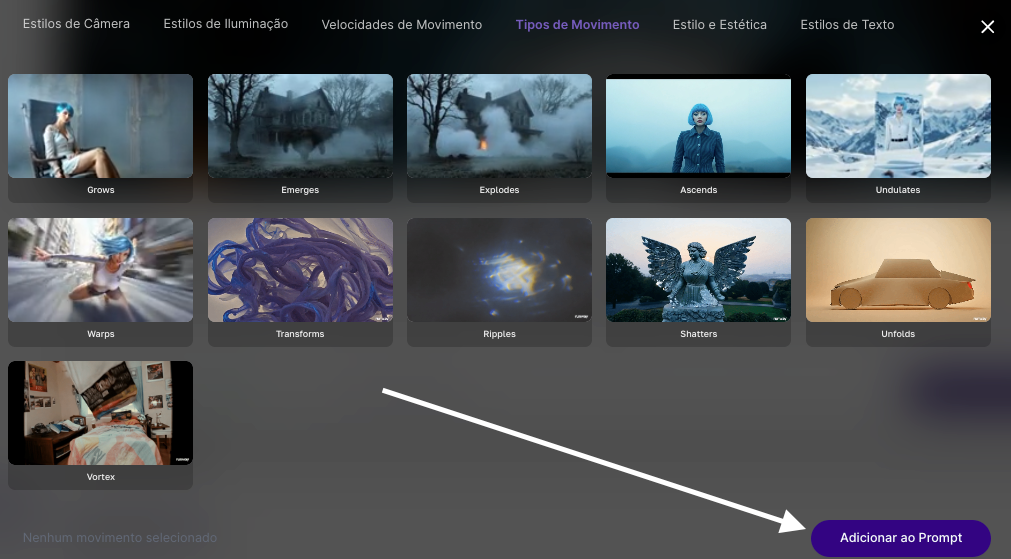
Besides that, you can use the + Add to Scene feature to include visual and motion elements in your prompt.
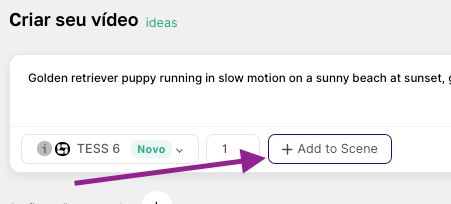
You can choose whichever elements you want and, at the end, add them to the prompt:
The chosen model
After the prompt, it’s important to choose a video model that will be responsible for generating your animation, motion, or making your video a reality. In Tess AI, we have a list with several models available. To search for one, you can type its name or scroll down:
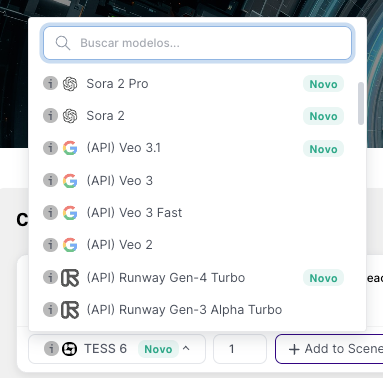
Each model has its own characteristics: some allow reference images, others don’t, and some work on top of videos. The best way to find out which one works best for you is by trying them out or opening each one’s specs on the official release pages.
Advanced Settings
Depending on the selected model, you can tweak things like:
Video aspect ratio (e.g.: 9:16 vertical for Reels/TikTok, 16:9 for YouTube)
Duration (short clips)
Style/quality (when there are options)
Variations (generate more than one option)
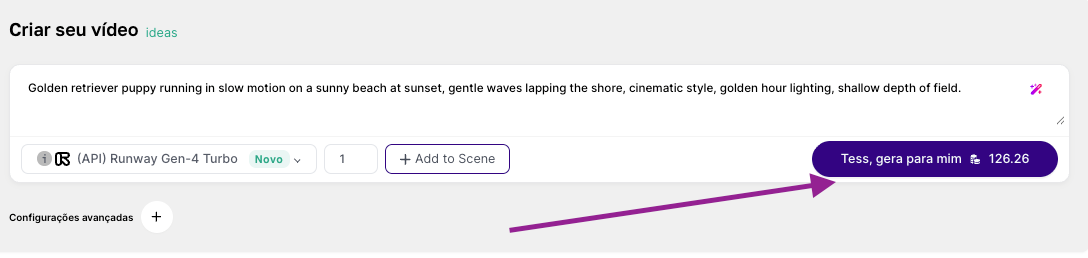
After you send the prompt, Tess processes it and returns the clip. The cost to generate each video, according to the model you chose, will appear next to the generate button:

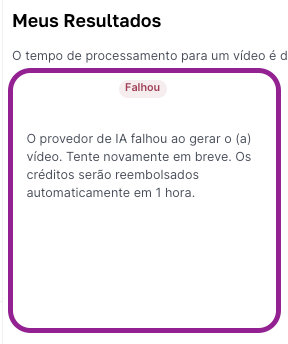
Anyway, it's important to check if there was anything in the process, on the user's side, that could have caused the failure, such as:
Prompt length: avoid prompts with more than 500 characters
Reference image: check the format sent and the one supported by the model
Tess AI's Video Generator boosts the creation of dynamic content: you go from idea to a ready clip in minutes. Start simple, refine the prompt, and if the use is recurring and follows the same patterns, create a Video Agent to keep consistency and gain scale.