In the "Preferences" section, you can customize important aspects of the interface, such as language and visual appearance, making your experience more comfortable and productive.
How to access the Preferences settings
Log in to your Tess AI account.
Click your profile icon, located in the bottom-left corner of the screen.
Now select the "Settings" option.
Choose the "Preferences" option.
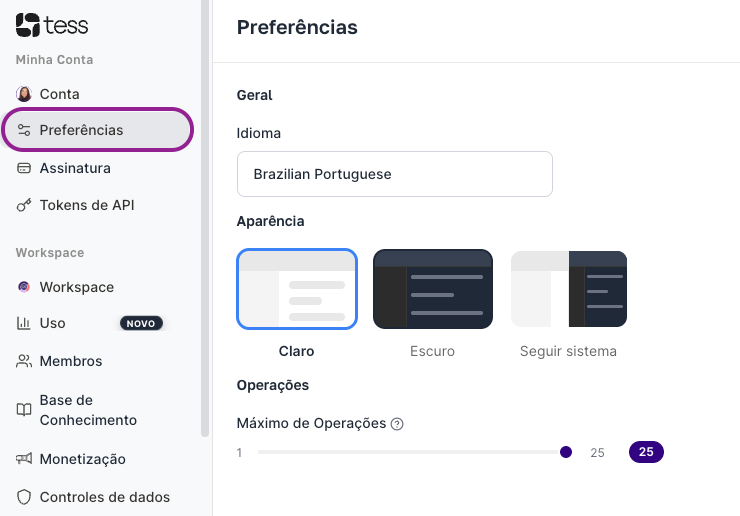
As for the settings:
Language: Tess AI is currently available in Portuguese, English, and Spanish. Select the language you want so that all menus and interface texts are translated.
Appearance: Choose the visual theme you like most for the platform interface:
Light: The default theme, with a white background.
Dark: A theme with a dark background, ideal for low-light environments and to reduce eye strain.
System: The platform will automatically adopt the theme (light or dark) that is set in your operating system.
Operations: This setting defines the maximum number of operations (requests) that the tools can execute to generate a single answer during a conversation in Tess AI Chat. This is important, for example, for internet searches, when you need to look up different sources to complete a task.
Adjusting this value is useful to control the complexity and resource usage of the tools. A higher number (up to 25) lets the AI perform more elaborate, multi-step tasks to formulate an answer, while a lower number limits the scope of actions.

If you have any questions about the platform preferences, our support team is available to help at: support@tess.im.