When creating your Tess AI account, the next step is to customize your Workspace. This environment is your work dashboard (whether individual or collective), and setting it up correctly is essential to create an identity for your team and make collaboration easier.
What is the Workspace?
Think of the Workspace as the main profile of your account. It’s the page that represents your team or your company inside Tess AI. This is where you define the name, image, and information that all members and visitors will see.
Accessing the Workspace Settings
There are two simple ways to get to the settings screen:
Path 1: Through the Workspace Menu
Go to your team’s main dashboard.
Click on the “Workspace Settings” option.
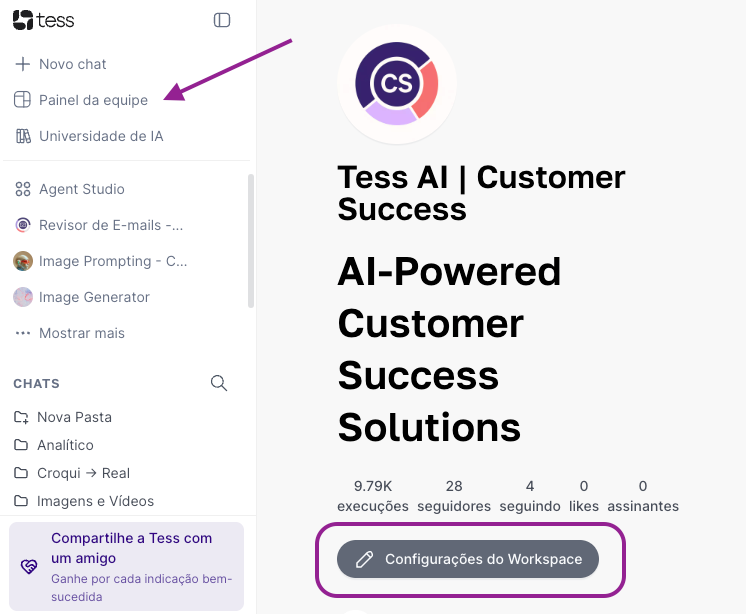
Path 2: Through the User Menu
Click on your profile icon in the bottom left corner.
Select the “Settings” option and find the Workspace.
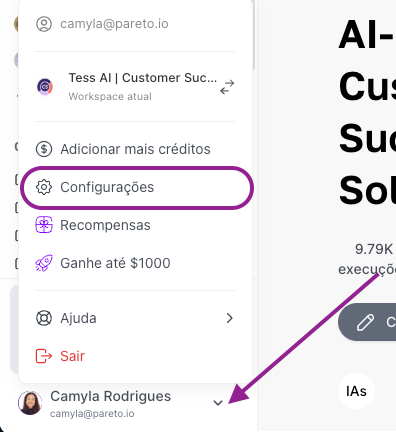
Both paths will take you to the same customization screen:
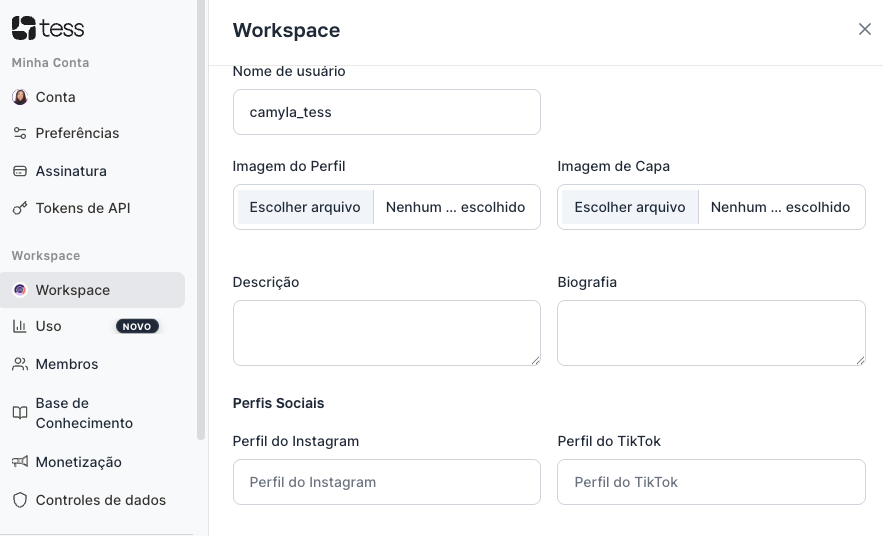
Customizing Your Workspace Information
Now, let’s fill in the fields to bring your workspace to life:
Name: The display name of your Workspace. It can be the name of your company, your team, or your personal name.
Username: The unique identifier of your profile (e.g.: @your_company). It will be used in the URL of your public profile.
Profile Image: The main image that represents the account. Ideally, use your company logo or a professional photo.
Description: A short, impactful sentence that appears right below the name, in your profile header.
Cover: The header image that sits at the top of your Workspace, working as a banner.
Bio (Optional): A space for more detailed information. The text you add here will be visible in the "About" tab of your profile.
Adding Social Media (Optional): You can add links to your social media profiles or your company’s. These links will appear on your profile and will redirect anyone who clicks to the respective pages, centralizing your brand’s contact points.
Final Step: Save Your Changes!
After filling out and reviewing all the information, click the "Save" button. This is the most important step to make sure all your customizations are applied.
Your workspace is now set up with the visual identity and information of your team. Remember that you can revisit these settings and edit whatever is necessary at any time, following the same process.
If you have any questions, our support team is available to help via email: support@tess.im.