Having full visibility into how members of your Workspace use Tess AI can be essential for security, governance, cost control, and optimizing your processes.
For families, Usage control makes Parental Control possible, meaning parents who own Workspaces can closely monitor how their kids are using AI. On the other hand, managers can track the engagement and progress of their team members.
The "Usage" screen was created exactly for these situations, offering a detailed history of all interactions with AI in your workspace.
How to access the Usage screen
Log in to your Tess AI account.
Click your profile icon, located in the bottom-left corner of the screen.
In the menu that opens, select the "Settings" option.
In the "Workspace" section, click "Usage".
The screen shows a complete log of every time an AI model was triggered. You can filter and analyze this information to get valuable insights.
Using the Filters
At the top of the screen, you’ll find filters to refine your search:
Type
Lets you filter by type of interaction, such as chat, Images, Code, among others.
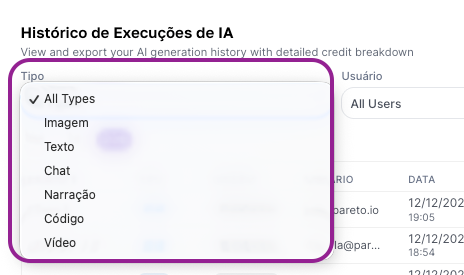
User
Select a specific member of the Workspace to view only their activities.
Period
Choose a time range for the analysis, with quick options for the last 1, 7, or 30 days.
NOTE: When exporting CSV you can customize the analysis period, expanding or specifying ranges different from the previous options.
Understanding the table data
Each row in the table represents a single AI execution and is detailed in the following columns:
AGENT: The name of the AI Agent that was used in the interaction or Tess’s Standard Chat (identified as Tess 6).
TYPE: The type of execution (e.g.: Chat, Video, Image, etc).
SOURCE: Where the call was made from. It will usually be "Plataforma" (indicating direct use inside Tess AI) or "API" (if the call came from an external system).
USER: The email of the team member who performed the action.
DATE: The exact day and time when the interaction happened.
CREDITS: The amount of credits that were consumed by that specific interaction. This column is key for tracking costs.
LINK: A shortcut that takes you straight to the conversation or the record of that specific interaction, allowing for quick, contextual auditing. Here, Owners and Managers will be able to access the logs of conversations and executions.
Exporting Data for Analysis
For deeper analysis, creation of custom reports, or long-term storage, you can export the data.
Click the "Export CSV" button in the upper right corner. This will download a CSV file (compatible with Excel, Google Sheets, and other spreadsheet tools) containing all the data that matches the filters selected at the time of export.
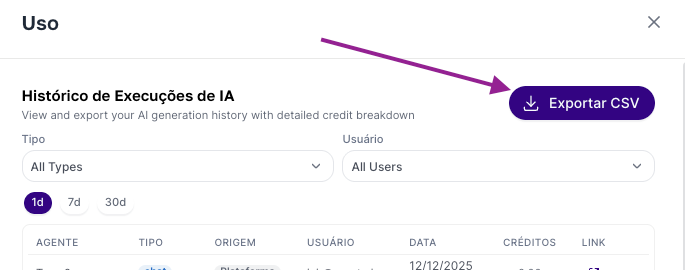
Next, select the period you want to pull data for:
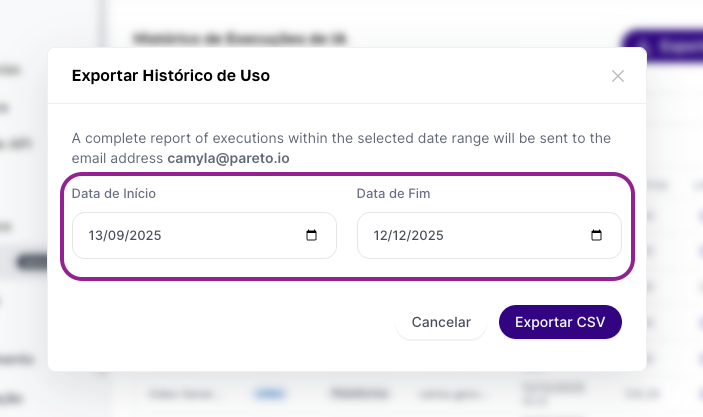
Right after that, when you export the CSV the document will be sent to your email.
Why is this screen important?
Security and Governance: Monitor the use by your kids or your team to avoid incompatible or risky usage.
Cost Control: Track exactly which interactions and users are consuming the most credits.
Usage Audit: Have a clear log of all activities performed, ensuring security and compliance.
Adoption Analysis: Identify which agents are the most popular and which team members are using the platform the most.
If you have any questions about the Usage screen, our support team is available to help by email: support@tess.im.