Video Tools let you turn a prompt (text description) into video clips. Inside the “Tools” menu in the chat, you can choose between different video generation models, each with its own style and behavior, so you can get to the ideal result for your project faster.
Where to find the Video Tools
Open the chat (e.g.: Tess 6 or another chat/agent)
Click the Tools button (icon next to the message box)
Look for the tools section/list and select a Video tool
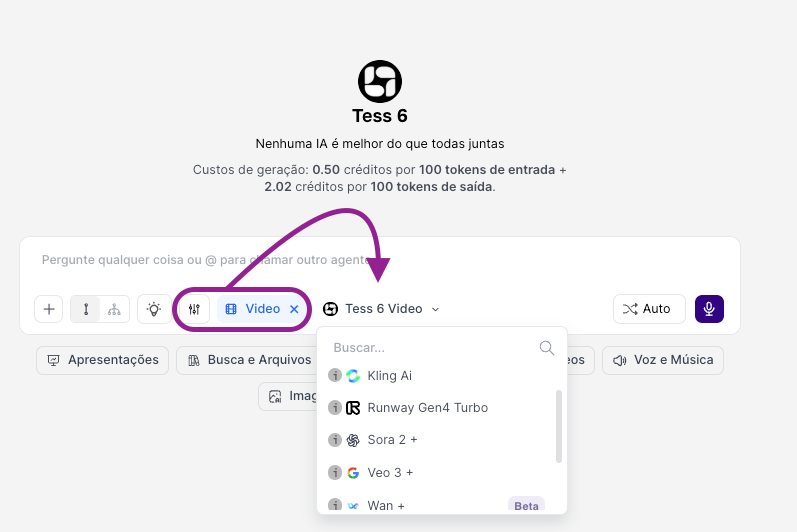
Inside the video Tools, you can see options like:
Tess 6
Kling
Runway
Sora
VEO
Wan
Seedance
Hailou
After choosing one of the AIs, write your prompt and ask it to generate the video.
Why are there several video tools/models?
Because each model interprets prompts in a different way and tends to stand out in specific styles. In practice, having several models gives you more aesthetic options (realistic, animated, cinematic, etc.), more chances of nailing the look of your project with less trial and error, and more flexibility to test the same prompt in different models to pick the best result.
How to use the Video Tools
In the Video Tools menu, choose one of the templates from the list. Then write a prompt thinking about “movement,” after all, video is not just looks; it’s action, camera, and duration.
This way, include:
Subject: what appears
Action: what happens
Environment: where it happens
Camera movement: static, travelling, close-up, slow motion, etc.
Style: cinematic, realistic, animation, etc.
Aspect ratio (if needed): 9:16, 16:9, 1:1 (when applicable)
Prompt examples
“Aerial travelling over a dense, foggy forest at dawn; sunbeams cut through the mist and reveal a winding river.”
“Close-up of hands typing on a mechanical keyboard, blue and purple neon lights, shallow depth of field, steady camera.”
Generate the clip and check if the action is clear, if the style matches what you expected, and if there’s visual consistency (objects “changing” too much). Video generation is highly iterative, meaning with each improvement and refinement you’ll move toward better practice and achieve increasingly satisfying results. Test 2 or 3 models with the same prompt when aesthetics are important.
The same prompt can generate very different results depending on the model. A simple exercise is to write a very detailed prompt, generate it in two different models and compare: realism, camera movement, consistency (objects/face/hands), “vibe” (mood), and lighting.
The models that generate videos with sound (speech or sound effects) are only: Wan, Veo, and Sora. They might be more expensive, but if you need this feature, the ideal is to work with one of them. If what you need is a simpler motion or animation, the other models, besides being cheaper, will be able to meet your needs just fine.