Imagine having a profile page dedicated to showcasing the best creations from your workspace, sharing your knowledge, and building a brand within the Tess AI community. This place exists and is called the Team Panel.
This panel is your public showcase, a space where other users can discover, follow, and interact with the agents and content you decide to share.
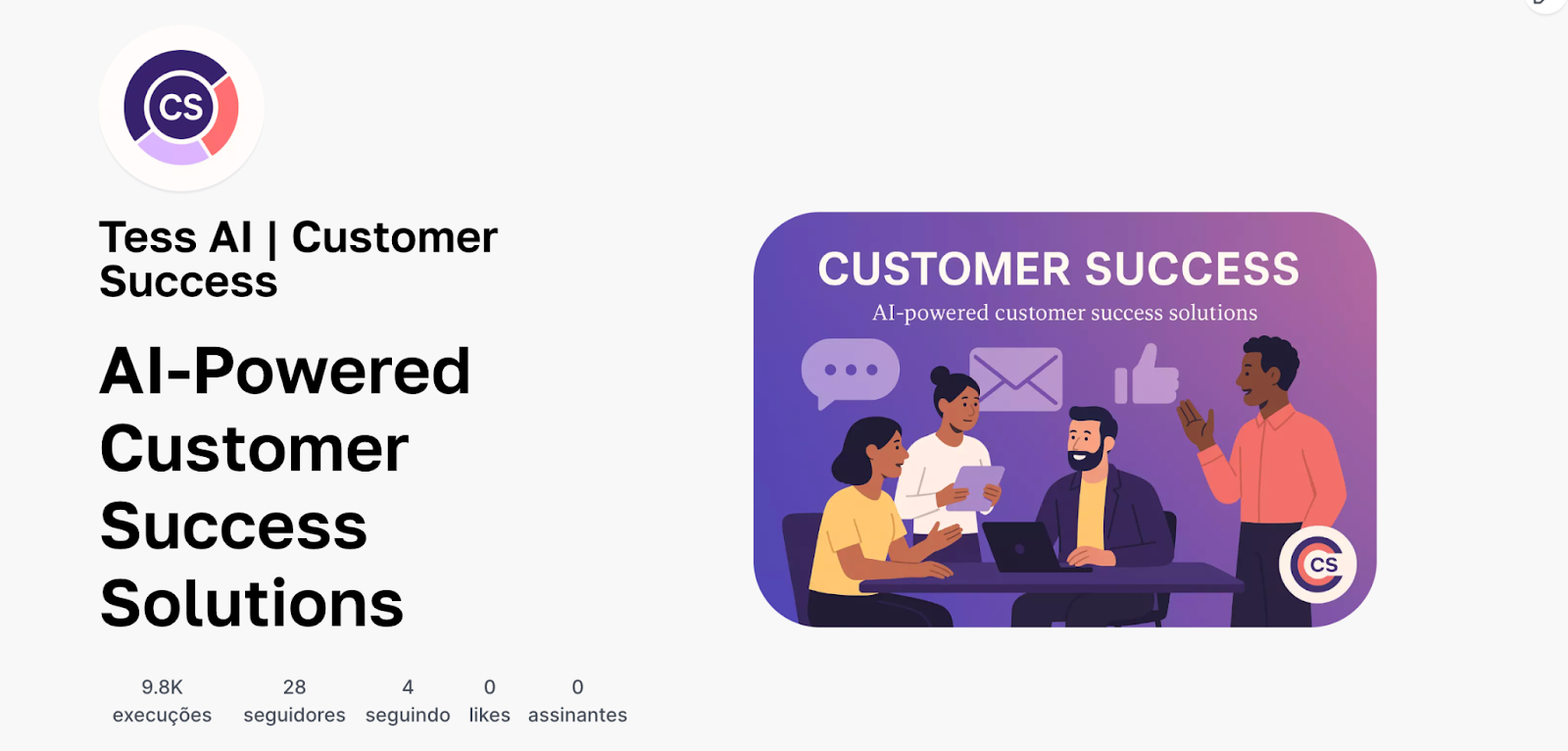
(Example: Tess AI CS team panel)
Browsing the Team Panel
Your panel is made up of a visual identity and engagement metrics, followed by tabs that organize your public content.
1. Workspace Identity and Metrics
At the top of your panel, users see the key information that defines your team:
Workspace Logo and Name: The visual identity and name you set in the settings.
Title and Cover Image: A catchy phrase and an image that represent your team’s mission.
2. Engagement Metrics:
Runs: The total number of times the public agents from your workspace were run by the whole Tess community.
Followers: How many Tess AI users decided to follow your workspace to keep up with your updates.
Following: The number of other workspaces that your team follows.
Likes: The total number of “likes” that your public agents and images received.
3. The Content Tabs
The content of your panel is organized into three main sections:
Tab "AIs":
This is your agents gallery. All agents that you or your team created and set as "Workspace" will show up here. It’s the best way to share the agents created with your whole team and with the Tess AI community, in case you want to monetize your workspace.
Tab "Feed":
Works like a visual portfolio. All images generated by members of your workspace that were shared publicly are shown here.
Tab "About":
This is where you tell your story. This section shows your workspace bio, a description of your mission, and the links to your social networks or website that you added in the settings.
How to Set Up Your Dashboard
You customize your dashboard directly in your workspace settings.
Go to your Team Dashboard and click the "Workspace Settings" button.
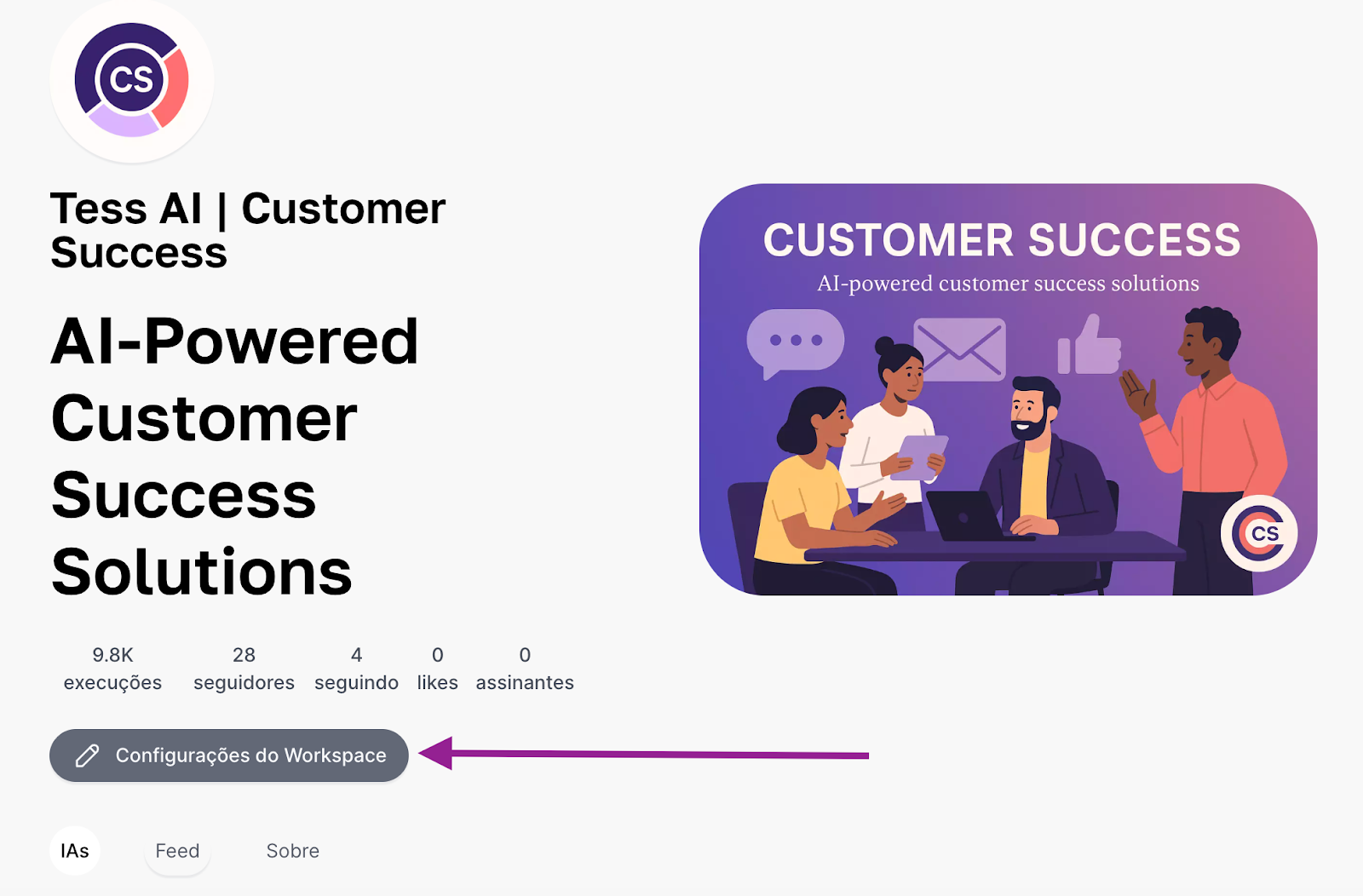
Important: Only workspace Owners are allowed to access this area.
If you have any questions, our team is available by email: support@tess.im.