This function lets you extract data and information from Google Sheets spreadsheets by simply specifying the spreadsheet URL and the desired cell range. With the extracted data, you can train an AI model capable of interpreting and analyzing the information. This capability turns raw data into actionable insights, delivering results that support decision-making in different business contexts.
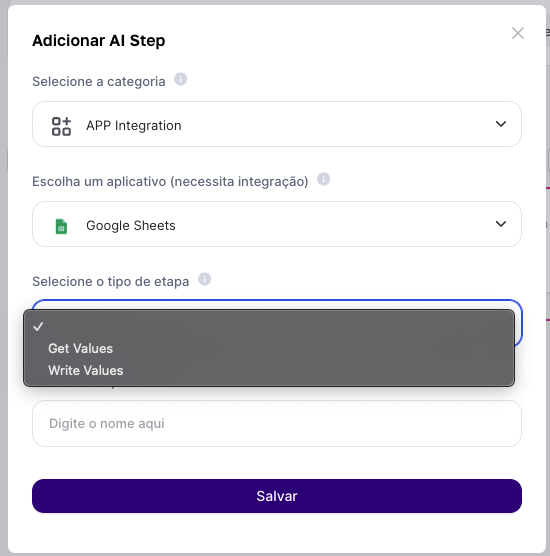
Fill-in Fields:
Enter the Spreadsheet URL: Provide the URL of the Google Sheets you want to access. Another option is to already have a fixed URL set in the advanced step.

Specify the Data Range: Indicate the sheet name and the cell range you want to extract, for example, "dados_abril!A1:C10".
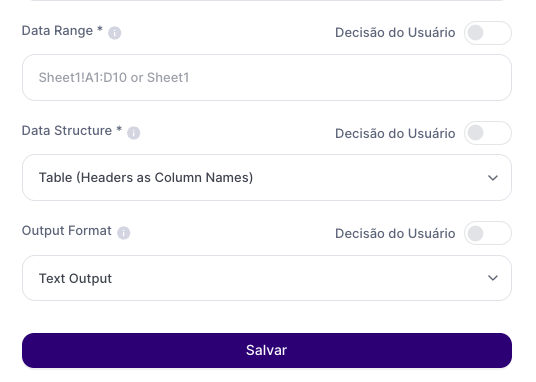
Output Result:
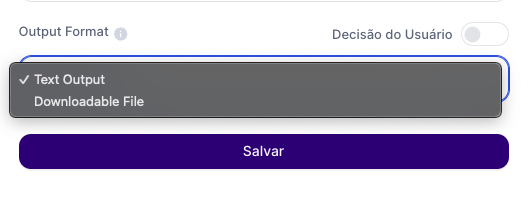
The extracted data will be displayed in a structured format, such as a file link or string, depending on the configured output format. The link-type output is recommended for cases where you’ll use next steps that analyze files and for transferring information with a large amount of data.
Use Cases:
Human Resources Management: Use this step to pull employee performance data directly from Google Sheets and, with this data, train an AI model to run analyses and spot potential leaders, training needs, or team turnover risks. This approach allows for more proactive, data-driven talent management, helping build a more engaged and productive workforce.
Financial and Budget Analysis: Pull financial data from multiple spreadsheets to run automatic consolidations and budget variance analyses. With this data, you can apply an AI model to detect anomalies, forecast future cash flows, and optimize resource allocation, making it easier to drive financial strategic decisions and prepare more accurate tax reports.
Market Research and Sentiment Analysis: Set up the extraction of customer satisfaction survey data stored in Google Sheets and use AI to run sentiment and text analysis. This helps you better understand customer perceptions, find areas for improvement, and adjust products or services according to market expectations.
Limitations:
The amount of data extracted depends on correctly specifying the cell range and is adapted to the LLM’s context.
Implementation Examples:
Case 1: URL import from Google Sheets by the end user
In the advanced step, the output format and output type parameters specify:
Output format Text: returns a list of objects, using the first row as column names. Default: returns a list of rows similar to a matrix.
Output format downloadable: returns the data as a string. Link: returns the data as a JSON-type Link for download.
Case 2: Fixed URL imported
In this case, the spreadsheet URL field and the data range are filled in manually, allowing you to consult reference materials for the template structure.
The "Google Sheets Get Values" function is a powerful tool that transforms the way companies analyze spreadsheet data. By extracting this information, you can train an AI model to perform deeper analyses and generate insights, turning simple data sets into valuable strategic information.