When building an agent in AI Studio, you might also want it to perform the same task but with different information each time. That’s what User Inputs exist for: to support you with that.
Unlike a fluid conversation in a chat agent with static training, User Inputs are predefined configuration fields that need to be filled in to start using the agent.
What are User Inputs?
Think of them as the fields in a form that you create for your agent. Instead of writing a long, detailed prompt with several scenarios, you guide and ask the user to provide the essential, specific information the agent needs to complete its training and start working.
In other words, these inputs are variables that complement the agent’s training. But remember, they don’t show up while the agent is being used, since they’re the initial condition for it to start.
The Available Input Types
You can request information from the user in several structured ways:
Short Text: To request brief and direct information. Ideal for names, titles, numbers, or keywords.
Long Text: Allows the user to enter large blocks of text. Perfect for descriptions, articles to be summarized, or detailed instructions.
Single Selection (Dropdown): Shows a list of options where the user can choose only one. Great for limiting the answer to a specific scenario.
Multiple Selection (Checkboxes): Offers a list of options where the user can tick several. Excellent for capturing preferences or multiple interests.
File Upload: Allows the user to attach a file (such as audio, video, or a document). This type of input is especially powerful when connected to an Advanced Step (such as audio transcription or extracting text from a PDF) to process the file before the AI uses the information.
Example: The "Mad Libs" Agent
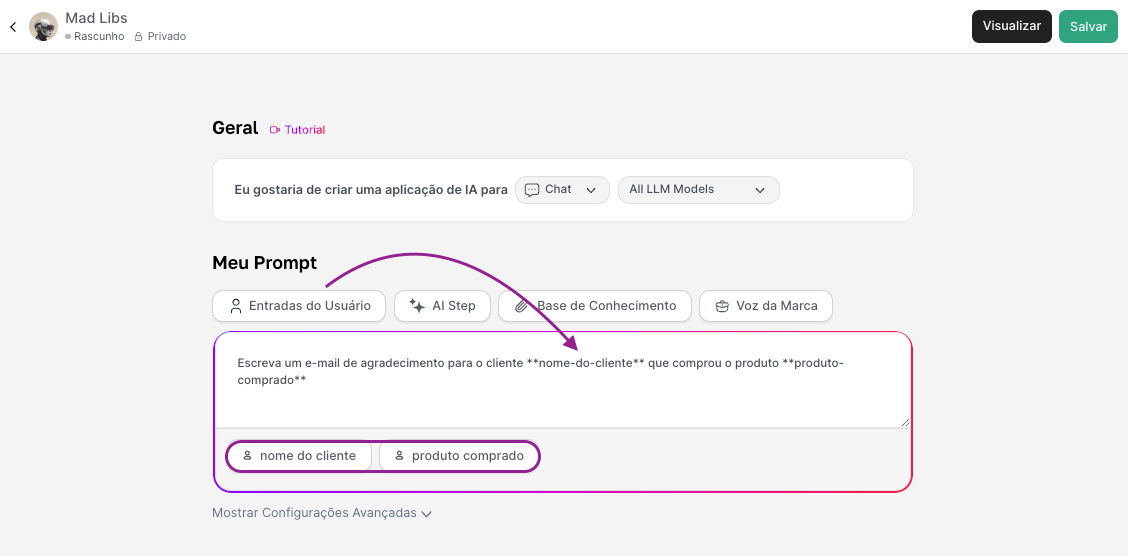
Imagine you created an agent to write thank-you emails. The body of the email will always look similar, but the customer’s name and the product they bought change every time.
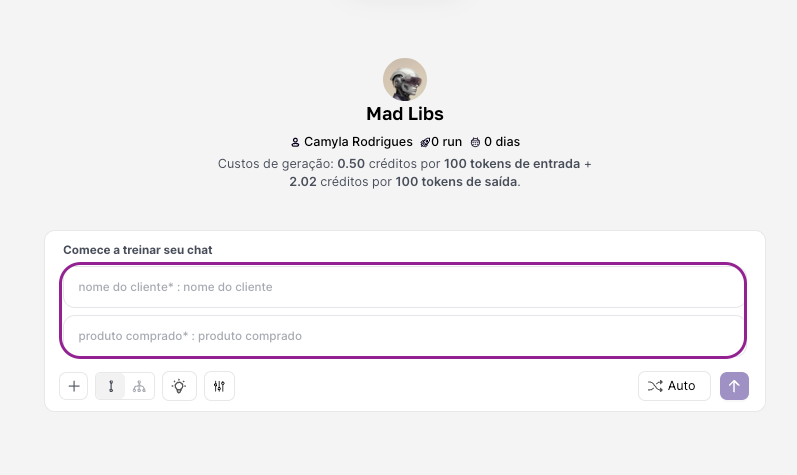
Instead of teaching the agent to write "Write a thank-you email for the customer [NAME] who bought the product [PRODUCT]", you can create two User Inputs: nome_do_cliente and produto_comprado.
When a user goes to use your agent, they won’t see an empty chat, but rather two fields to fill in. Only after filling them in and clicking "Run" will the agent start its task, already equipped with that information and replacing the variables in the training.
How It Works in Practice
When building the agent, you’ll define the User Inputs your agent needs (e.g.: nome_da_empresa, publico_alvo, idioma_de_saida). After that, you need to insert these inputs as variables, because if you don’t reference that input in the prompt, it won’t be considered anywhere.
The variable part of your prompt could be: "With these guidelines presented, now create a post for Instagram for the company {{nome_da_empresa}}, focused on the audience {{publico_alvo}}. The text must be in {{idioma_de_saida}}."
For those using the agent:
When selecting the agent, an interface with the fields "Company Name", "Target Audience" and "Output Language" appears. So the user needs to fill in these fields and send it.
Behind the scenes, the agent inserts the information filled in into the prompt and finishes the training with that new context..
Main Advantages
Reuse: Makes a generic agent applicable to infinite specific scenarios.
Ease of use: The end user doesn’t need to learn how to write complex prompts. They just fill out a simple form.
Standardization: Makes sure the AI always gets the crucial information in the format you defined, avoiding mistakes and ambiguities.
User Inputs are the best way to turn a powerful prompt into a friendly, reusable tool. On top of that, they can also be used as input in advanced steps!
They are the bridge between the complexity of your AI training and the simplicity your end user needs to be productive.