Take your agents to a new level of capability by allowing them to process files. The File Upload type User Input is the gateway to creating agents that can read documents, transcribe audio, analyze videos, and much more.
This intermediate-level tutorial assumes that you’re already familiar with basic agent creation and will focus on the powerful combination of file input with Advanced Steps.
The Key Point: The Connection between File Upload + Advanced Step
Unlike a text input, which can be used directly in the prompt (or in the step), the "File Upload" needs to be connected to an Advanced Step. The workflow is a logical sequence of two steps:
The user uploads a file (through the User Input).
An Advanced Step (like "Audio Transcription" or "PDF Text Extraction") processes this file and generates a result (a text, for example).
The result of the Advanced Step is then used by the AI in the main prompt to generate the final answer.
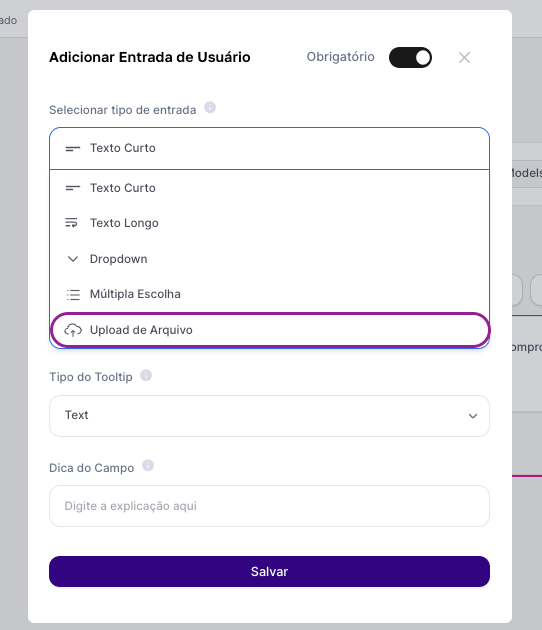
Our Example Project: The Media Translator Agent
To show this powerful combination, we’re going to build an agent that works as a translator. It will be able to receive an audio or video file, transcribe the content, and translate it into Portuguese or another language.
1. Initial Agent Setup
In AI Studio, start by creating a new Chat or Text Agent. The default selection of "All LLM" is perfectly suitable for this example.
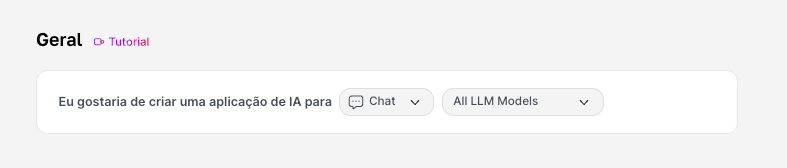
2. Setting Up the Input and the Advanced Step
This is the most important step. We’re going to set up the two parts that will work together.
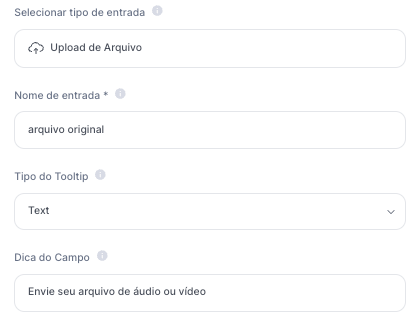
In "User Inputs", add a new "File Upload" input, with the variable: original file. In the label, use: "Upload your audio or video file"
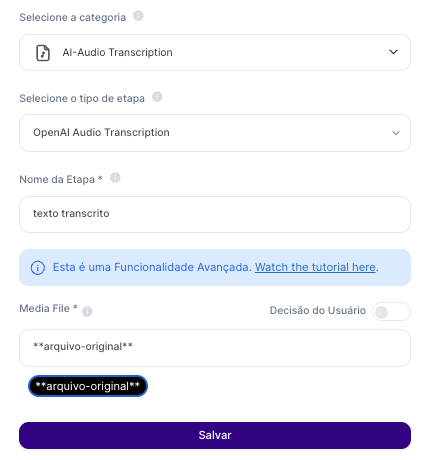
In "AI Steps", search for the AI-Audio Transcription step, select the desired AI Model, and name the step as transcribed text.
In the file field, choose the *original-file* variable to keep it dynamic. With this, you’ve created a flow where the user uploads the file and it’s processed and transcribed by the step. Now it’s time to use the result of the step in the agent’s prompt!
3. Developing the Main Prompt
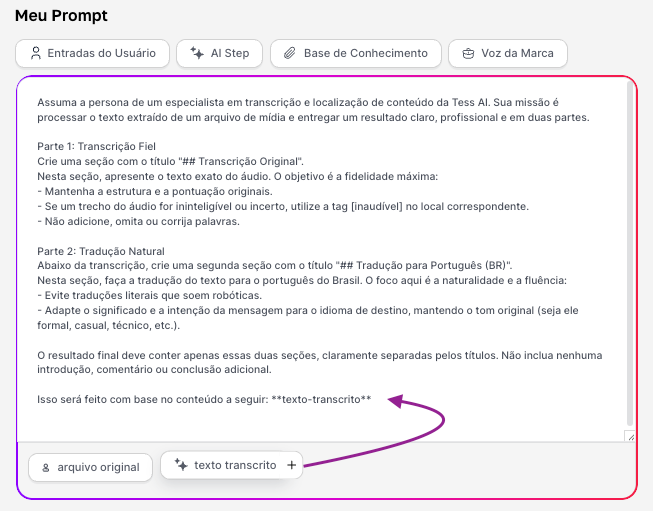
Now let's tell the AI what to do with the text that was extracted by the Advanced Step. In the prompt field, we have:
Take on the persona of a specialist in transcription and content localization at Tess AI. Your mission is to process the text extracted from a media file and deliver a clear, professional result in two parts.
Part 1: Faithful Transcription
Create a section with the title "## Original Transcription".
In this section, present the exact text from the audio. The goal is maximum fidelity:
- Keep the original structure and punctuation.
- If a part of the audio is unintelligible or uncertain, use the tag [inaudible] in the corresponding place.
- Don’t add, omit, or correct words.Part 2: Natural Translation
Below the transcription, create a second section with the title "## Translation to Portuguese (BR)".
In this section, translate the text into Brazilian Portuguese. The focus here is naturalness and fluency:
- Avoid literal translations that sound robotic.
- Adapt the meaning and intention of the message to the target language, keeping the original tone (whether it’s formal, casual, technical, etc.).The final result should contain only these two sections, clearly separated by the titles. Don’t include any additional introduction, comments, or conclusion.
This will be done based on the following content: *texto-transcrito*

4. Saving and Testing
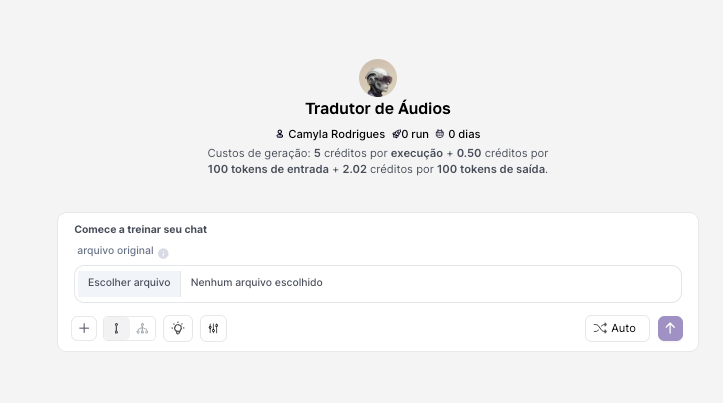
Click on "Save" and then on "Preview". You’ll see an interface with a button for file upload. Send a short audio or video (file size limit of 200mb) in another language and let the agent handle the rest!
Mastering the connection between a "File Upload" Input and an Advanced Step is the key to creating agents that interact with the world beyond text. The translator example is just one of infinite possibilities. You can use the same principle to create agents that read PDFs, analyze reports, and much more, automating complex tasks intelligently.